How to ship a .pack for a Carel STone controller that just works
Contents
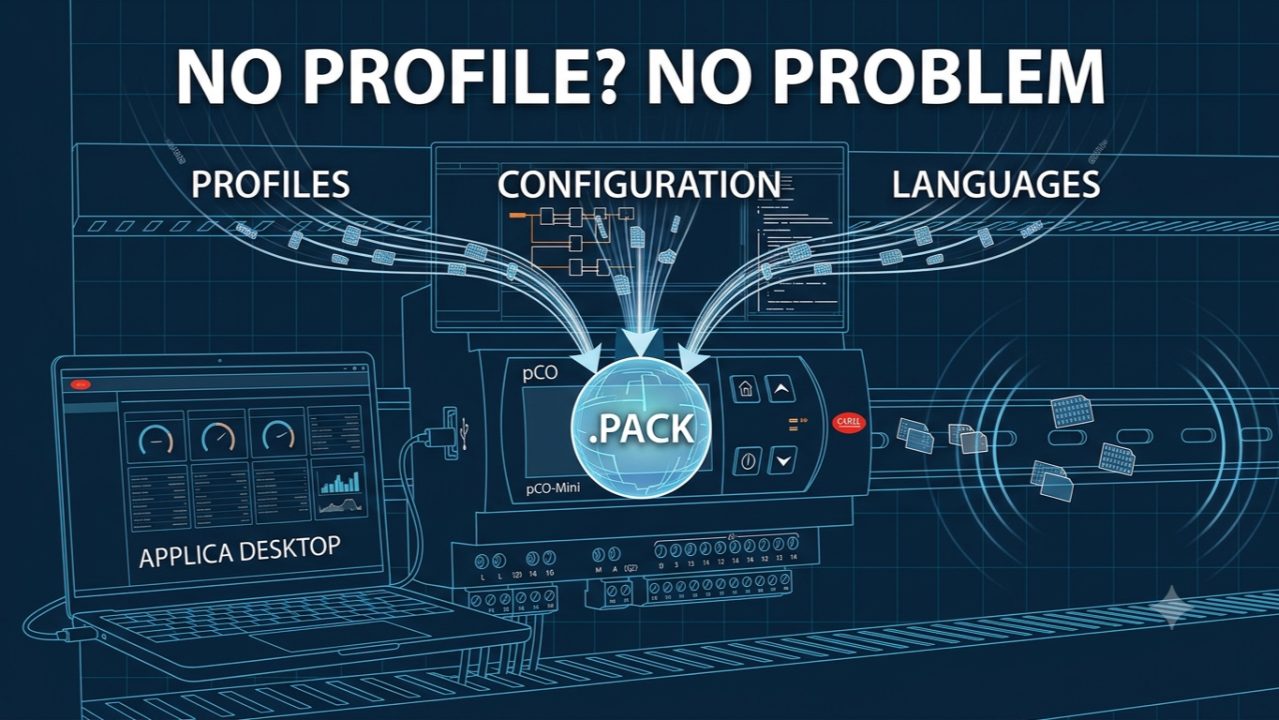
Embed profiles, configuration and languages into one .pack, so a brand-new, blank controller runs the full application from the first power-up. A practical, field-tested guide for STone developers and OEMs.
The idea in one sentence
We build an application that already contains its users (access profiles), its configuration and its languages, and we package everything into a single firmware file — so a blank controller runs the complete program with all parameters straight out of the box, loaded from a USB pen drive or with APPLICA.
On your own bench you never feel this problem. You are connected to the controller in STone, you push profiles, configurations and descriptions live, and everything is simply there.
But the moment you hand a finished program to someone else — a colleague on site, an installer, a customer commissioning a fresh unit — that live connection is gone. Whatever is not embedded into the application itself does not exist on their controller.
This guide shows how to embed it all and deliver one self-contained .pack.
A program that already knows its users and its configuration
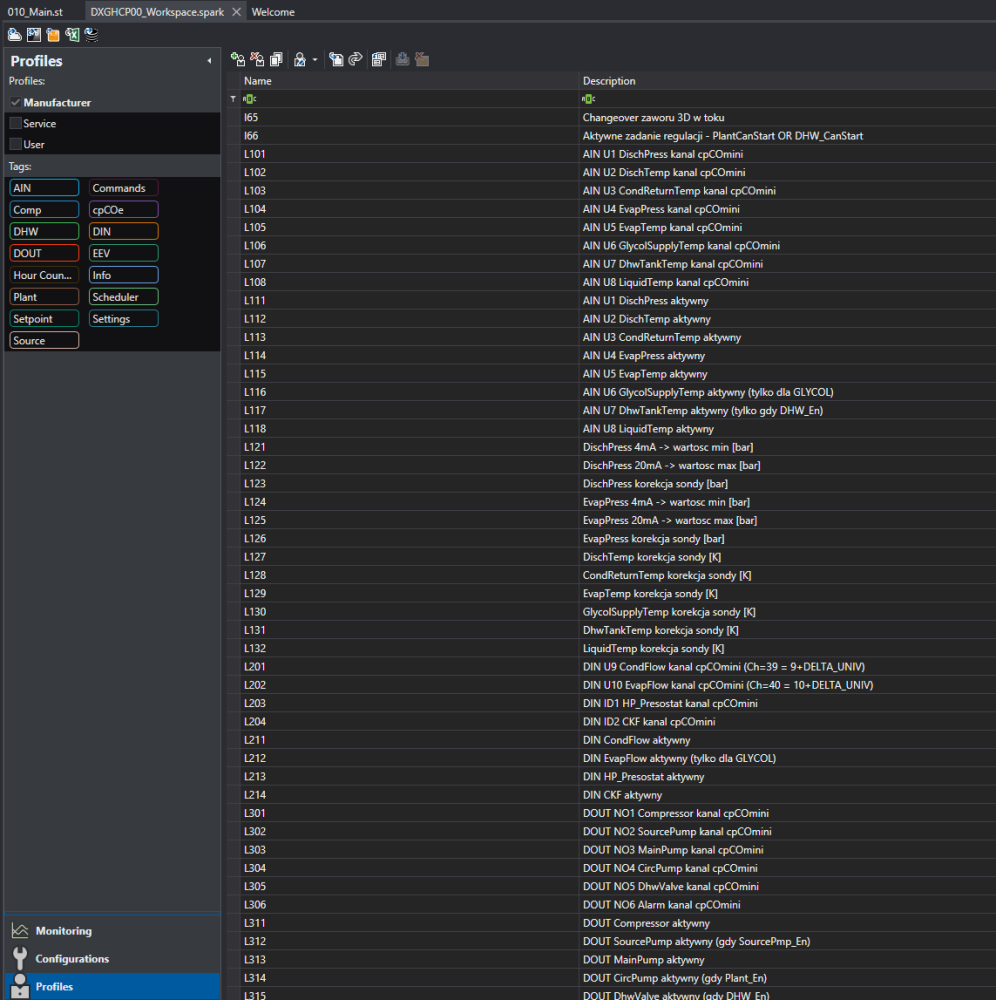
Before any packaging, the workspace must actually contain what we want to ship:
- Profiles — the access levels your operators log into on the display and in APPLICA (Manufacturer, Service, User). Each profile is a filtered set of parameters, optionally password-protected.
- A configuration (optional but recommended) — a named set of default values, so the unit boots ready to run instead of with raw defaults.
- Languages / descriptions — the translated parameter texts used by the commissioning tools.
These are edited in STone → Commissioning. If your profiles already exist there, you are ready. Opening Commissioning for the first time? Import your existing workspace — a new one starts empty and would not contain the profiles you already designed.
Step 1 — Build the application
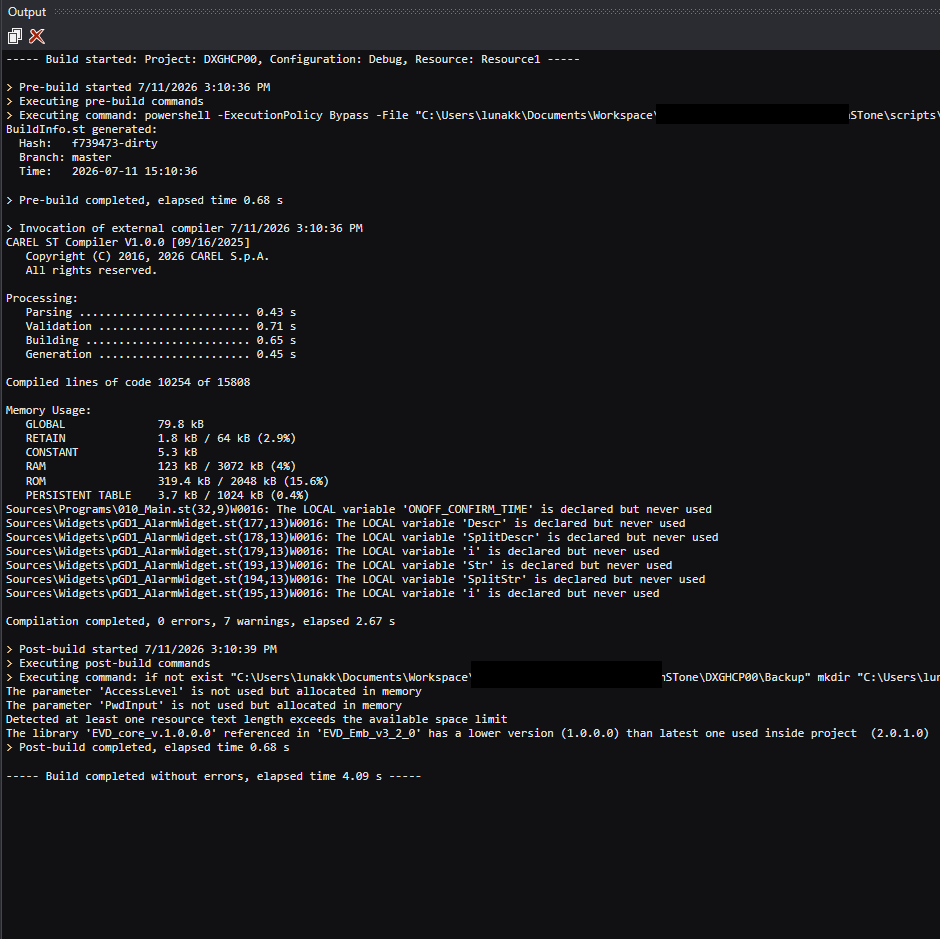
Embedding works on the compiled binary, so build first. The build produces:
DXGHCP00/Output/Resource1/Configuration1/flash.bin
Step 2 — Embed profiles, configuration and languages
This is the core step. In STone → Commissioning, use Open binary.
- Click Open binary and select the freshly built
flash.bin. (The Binary tab is hidden until a binary is loaded — once you open one, it appears.) - In Select resources to embed, tick:
- Profiles — your access levels
- Configurations — and mark the one to install automatically, if you want ready defaults
- Languages — the translations/descriptions for the device
- Click Save. STone writes a new
.binthat now carries all selected resources inside it.
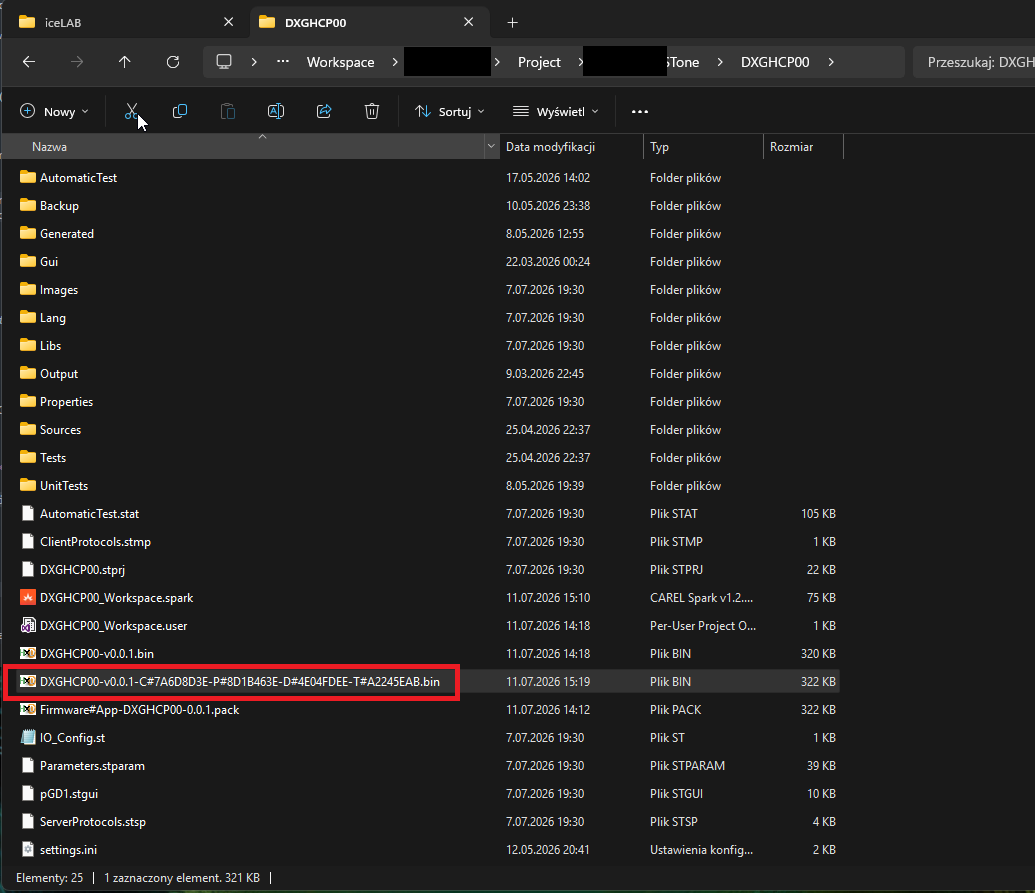
Verify the embed straight from the filename. STone encodes CRCs of the embedded resources into the new file name:
DXGHCP00-v0.0.1-C#7A6D8D3E-P#8D1B463E-D#020C7264-T#A2245EAB.bin
                C# Config   P# Profiles D# Descr.  T# Translations
A non-zero P# means profiles are really inside (an empty embed reads P#00000000). A 10-second check that saves a lot of guessing.
Step 3 — Package everything into a single .pack
Wrap the embedded binary together with the bootloader and OS into one distributable file.
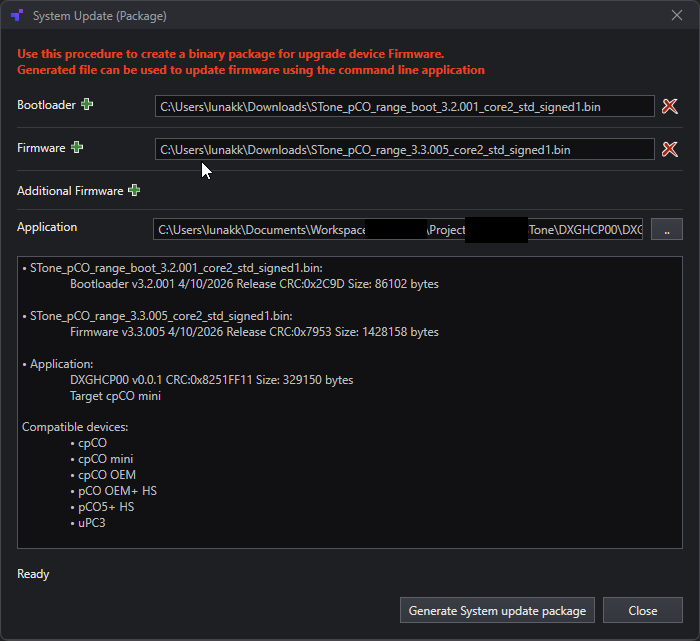
In STone: Tools → Target System Update (Package).
- Application → select the embedded binary from Step 2 (the one with the
C#/P#/D#/T#name), NOT the rawflash.bin. This is the single most common mistake: package the raw build and your profiles never make it into the.pack. - Bootloader and Firmware (OS) → add the matching
.binfiles for your target. - Click Generate System update package.
You get one file, e.g.:
Firmware#cpCO-Mini#Boot1.0.025#OS1.0.176#DXGHCP00-0.0.1.pack
That single .pack now contains bootloader + OS + your application with profiles, configuration and languages baked in.
Step 4 — Deploy to a clean controller (no development PC)
The payoff: a person with zero STone knowledge can bring a blank controller to life.
Option A — USB pen drive (fully offline, no tools):
- Copy the
.packinto the folder\UPGRADE\APPLY\on the pen drive. - Plug the pen drive into the controller.
- The
.packloads automatically (it starts after ~20 seconds) and the file is removed when finished.
(Requires USB Host / Pen Drive mode enabled in the controller settings.)
Option B — APPLICA (cable):
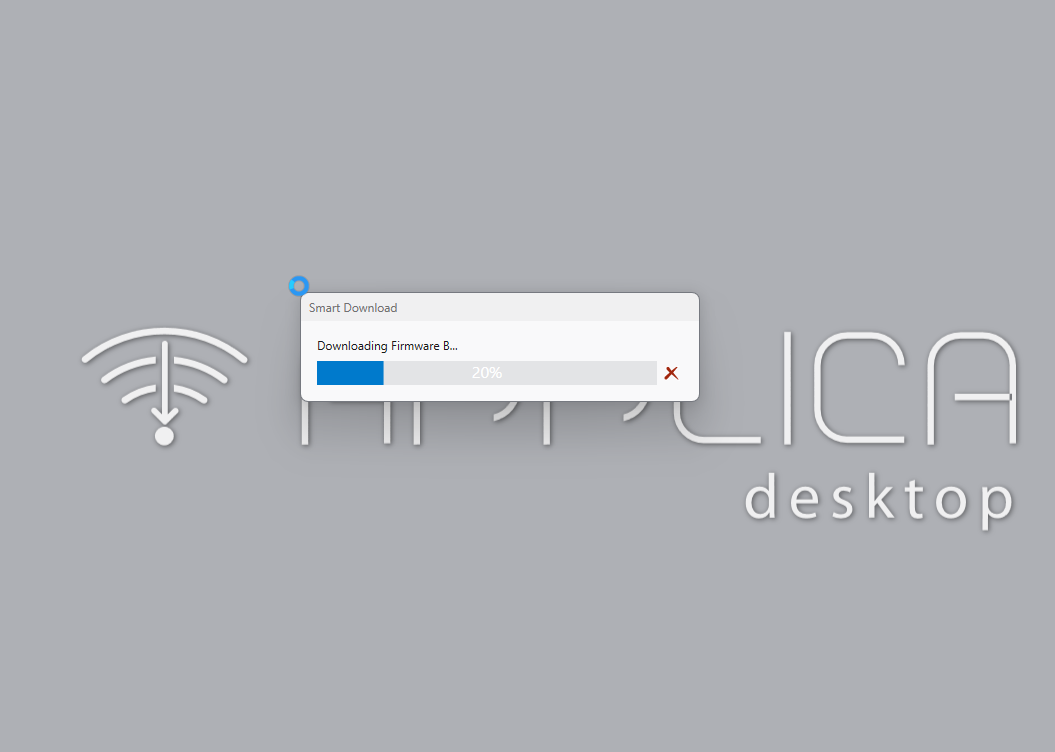
Connect APPLICA to the controller, authenticate, select the .pack, and flash.
The trap that costs people hours: “No profile” on the display
Here is the subtle part that turns a “works on my bench” package into a truly shippable one.
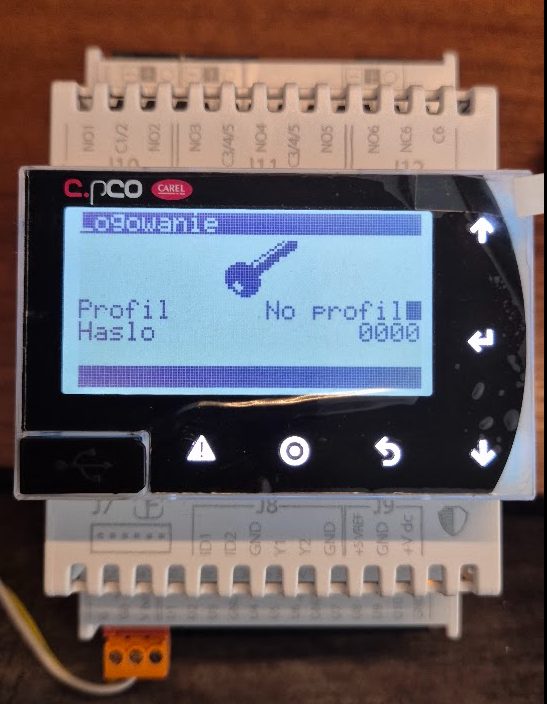
After loading the .pack you may see this: APPLICA shows the profiles correctly, but the built-in display (pGD1) shows “No profile”. Everything looks embedded, P# is non-zero, yet the on-device login has nothing to select.
Why: the commissioning tools and the running application read profiles from different places.
- APPLICA actively searches several locations, including the resources embedded in the binary — so it finds them.
- The running application (the profile selector on the display) reads profiles only from the controller filesystem. Embedding a resource into the binary does NOT automatically place it there.
The fix: the application must extract the embedded resources into the controller public memory on first boot. STone exposes exactly this — three lines in your first-cycle startup:
System.FileSystem.Async.ExpandPackContent(ExportFileType#Configurations, FALSE);
System.FileSystem.Async.ExpandPackContent(ExportFileType#Descriptions,   FALSE);
System.FileSystem.Async.ExpandPackContent(ExportFileType#Profiles,       FALSE);
ExpandPackContent extracts the embedded files from the binary and places them into the respective folders of the controller public memory. FALSE means “do not wipe”, so anything a user added on site is preserved.
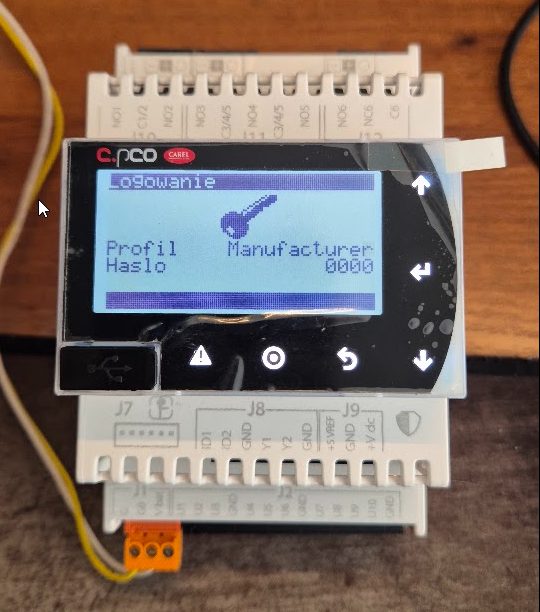
With those three lines, loading the .pack on a blank controller results in: on first power-up the application unpacks profiles, configuration and descriptions into the filesystem, and the display immediately offers Manufacturer / Service / User — no manual step, no development PC.
Note: there is no separate “languages” resource to extract — the pGD1 on-screen languages are compiled directly into the firmware and always travel with it. The translated parameter texts come out under Descriptions.
Takeaways
- On your own bench you push profiles and configuration live — convenient, but it hides the real requirement.
- To ship a program someone else loads on a blank controller, everything must be embedded: profiles, configuration and languages go inside the application binary, then into one
.pack. - Package the embedded binary, not the raw build — check the
P#in the filename. - Deliver with a pen drive (
\UPGRADE\APPLY\) or APPLICA — no development environment on site. - Add
ExpandPackContent(...)in first-cycle startup, or the display greets you with “No profile” while everything looks correct.
One file. Any blank controller. Full application, full parameters, ready to run.
Building on Carel STone controllers and want this done for your units? See our STone application development service.